 Open Historia
Troubleshooting
Blank maps, WebGL, greyed-out AI, slow turns, updates at launch, community hub and CORS errors, and the other things that go wrong.
The common failures, and what actually fixes them.
Before anything else: ☰ → Settings → Advanced → Diagnostics holds the game's log — what you did, and every error and API failure along the way. 🔎 View log reads it in place. It usually explains the problem immediately, and it is what to attach to a bug report.
The map is blank
In the browser. The map files come with the site and load from openhistoria.com while the game starts; the first visit downloads about 35 MB of them. Reload; if it persists, clear the site's cache and try again, check that nothing (an ad blocker, a firewall) is blocking the site's own files, or use the desktop or Android app, which keep the map on the device.
On desktop. The map data failed to download on first launch. It is fetched separately from
the installer, once, behind the Setting up Open Historia screen. Restart the app and let that
screen finish. From a source checkout, run node scripts/fetch-map-assets.mjs.
On beta the setup screen says when the download fails, with Try again, or Continue without the map to open the game anyway.
On Android. The current app carries the map inside it and needs no connection to draw it. The old app, from before 23 September 2026, streamed it from the network like the website; if you still have that one, replace it — see playing on your phone.
"WebGL Not Available". The map cannot render without WebGL. WebGL can drop out for a moment — a graphics driver resetting, the computer waking from sleep, a laptop switching graphics card — so while the warning is up the game keeps checking for half a minute and reloads by itself as soon as WebGL is back. Reload on the warning tries again at once. If it stays, update your graphics drivers, and in a browser check that hardware acceleration is enabled. On a virtual machine or over remote desktop, WebGL is often unavailable.
The AI is greyed out or does nothing
Work through these in order:
- Is a provider configured? ☰ → Settings → AI. No key, no world. Look at the Models
list: an entry reading Unusable says what is wrong with it, such as
key rejected (401)ormodel not found (404). Fix it and the mark clears. - Is the key right? Paste it fresh; keys often pick up whitespace.
- Is the model name right? A model you type must exist on that provider. Left blank, OpenAI
uses
gpt-6-lunaand OpenAI Compatible picks one from the server's list. - Is the endpoint right? Compatible providers need the base URL, usually ending
/v1. An address that points at the service's website rather than its API gets a web page back instead of an answer. The error quotes a line of that page and tells you to check the address, which should start withhttps://and usually end in/v1. - Are you in the browser build with a provider that needs a relay? The hosted website cannot relay. Gemini and Anthropic work there; OpenAI and most compatible endpoints do not. Use the desktop app. See connecting an AI provider.
Turns fail, or always fall back to canned events
This is almost always the model failing to produce valid structured output.
- Your model is too small. Below about 7B this is common. See AI providers and models.
- Its context window is too small. A turn's prompt is large, and a model limited to a few thousand tokens cannot take it. A turn needs 32k tokens or more, and 128k is comfortable. The error says the context window was exceeded and how big the request was. Once a model has said how big its window is, the game remembers and does not send it a request that cannot fit: the call goes to the next model in the list instead, or, if none can take it, is not sent at all and says so. If a model can now take more — a provider raised its limit — the game tries it again by itself once what it learned lapses: a week after a refusal, or a month after the model stated its window.
- A local model you loaded with a bigger window is still refused. A model on your own machine or network is never held to a window learned from its refusals, since you set its window when you load it. Older builds did hold it, for a month: forget the window as above, or update the game.
- Toggle Strict tool schema (on the connection, in Settings → AI). Some gateways and local servers handle the strict form of structured output badly, and flipping this fixes it outright.
- Try a different model on the same provider. Some are far better at this than others.
- Check the diagnostics log — it will show you what came back.
Turns hang forever
Turn on Limit AI generation (Settings → AI). It abandons a generation that has gone silent and falls back rather than waiting indefinitely. It watches for silence rather than total time, so it will not cut off a slow-but-working model.
Then: Cancel in the time panel always works and leaves the world untouched.
If it is a local model, it may genuinely be that slow — check whether it is producing tokens at all. If it is a cloud model, you may be rate limited.
When a request fails
Model calls fail: a provider is overloaded, a rate limit bites, a response comes back empty. The game's answer is that a failure should cost you the thing that failed, and nothing else.
The advisor
A failed answer appears as an error in the thread with a Retry button. Press it and the same question is asked again — you do not retype anything, and if it succeeds the thread reads as though the error never happened.
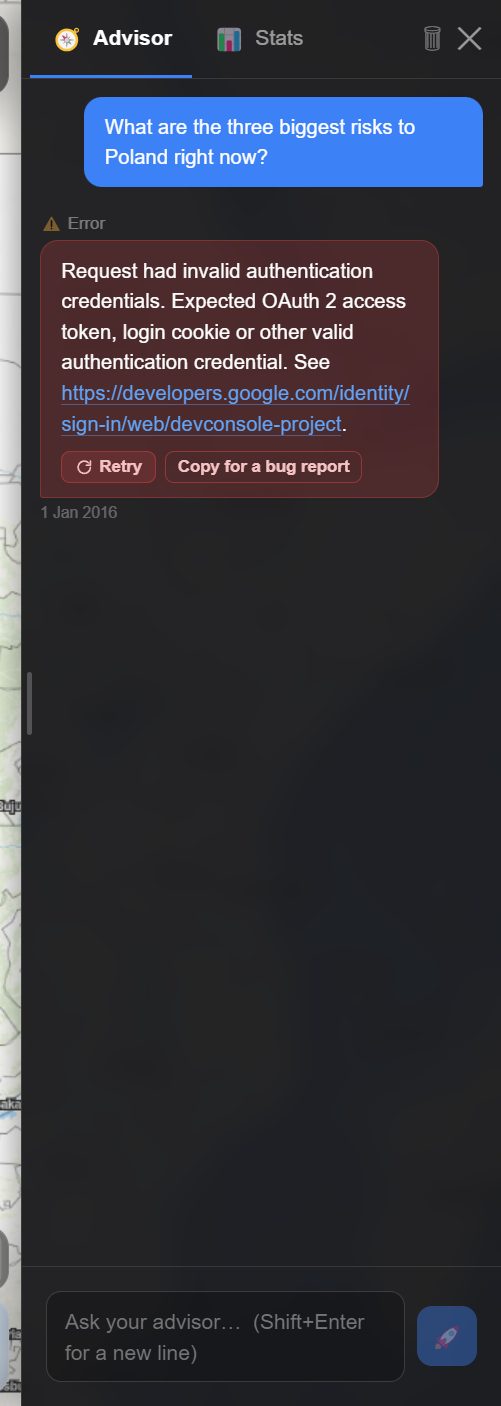 Your question is kept above the error, so Retry re-asks it as written. The button beside it is
💾 Save logging file while the diagnostics log is on, and Copy for a bug report when it is
off — see reporting a bug.
Retry is offered on the newest error only. Most advisor failures are the transport or an overloaded provider rather than anything about your question, and the transport has already waited and tried once by the time you see this.
Diplomatic messages
The same, in the chat. A message that fails to get a reply shows an error bubble with Retry on it. Pressing it re-sends that message; the conversation carries on as if it had worked first time.
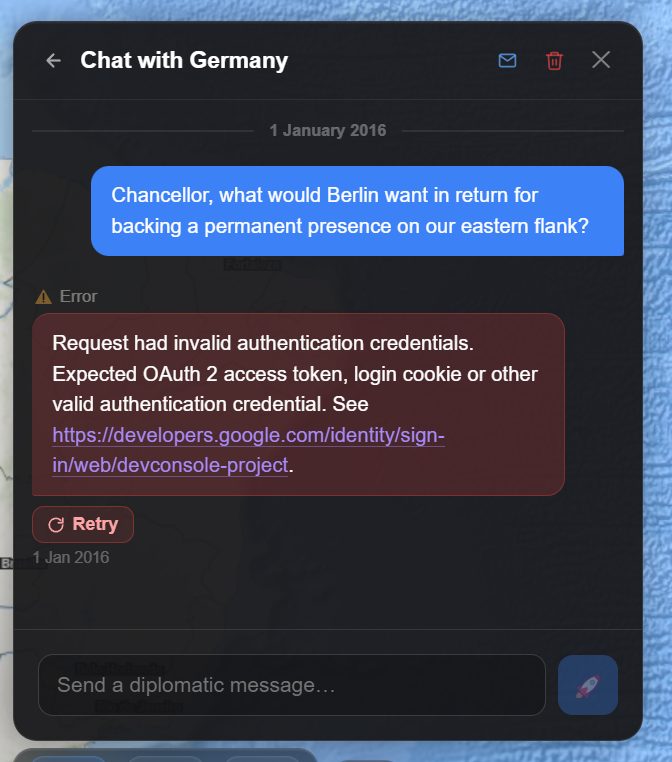 The message you sent stays in the thread. Retry asks Berlin again; nothing needs retyping.
A held time skip
This is the one that saves real time. With Generate long time skips in segments on (Settings → AI; off by default), a skip of 120 days or more is written in parts. When one part does not come back, the turn is held, not failed:
- Nothing has been written. Your campaign is still on its old date.
- The segments that already succeeded are still in hand.
- Retry re-runs only the segment that failed — the minutes spent on the earlier ones are not spent again.
The panel goes amber rather than red for exactly that reason: a held turn is recoverable. If a retry fails it says so plainly and counts the attempts, rather than re-showing the same message and looking like a dead button. Discard the turn and run it as a shorter skip if it keeps failing. See time and turns.
A held Projects board
The turn's events can succeed while the Projects & Operations update fails. When that happens the turn is held the same way: "Your events are ready, but the Projects & Operations board did not update, so nothing has been saved yet." (A skip's events now carry the board's changes themselves, so this is rare.)
Retry the board and it finishes the turn, keeping the events that already came back. You do not re-run the whole simulation to fix a board that was the only thing to fail. Discard it and the turn runs again from the start.
The turn is released before the retry runs, so a turn can never be applied twice, and it is only held again if the board fails a second time.
On beta two more things hold a turn. When the checks after a time skip — the ones that move units, ground, structures, the timeline, the board and your agents' reports with the events — do not come back, the turn waits: Retry the checks, Continue without them, or Discard the turn. And with Stop when my events fail on (Settings → AI), a skip in which your own events were refused, or an order got no outcome, lists them and waits: Retry the failed events, Retry the whole skip, or Keep it and move on.
If retrying does not help
Undo the turn from the time panel and try a shorter skip, or a different model.
Every model has used its allowance
"Every model in your Fallback list has used its allowance for now. The first back is …, at …"
No entry in Settings → AI → Models can answer: each one is Spent or Unusable, and at least one is Spent. The time skip did not start, rather than fall back to canned events. Either wait until the time shown, or add a backup — a paid key or a local model — and play on now. If you know a model is back sooner, for example because you just topped up billing, press Reset on its entry.
If instead it says "No model in your Fallback list can answer", nothing is coming back on its own: an entry is Unusable, and the message names it and what is wrong. See backup models.
The writing suddenly changed
A notice near the top of the screen says when the game moves to a backup model, and why: "… has used today's allowance. Now using …". A different model writes differently. Settings → AI shows which entries are Spent and when each comes back.
Rate limits
Symptoms: turns fail intermittently, or stall on long jumps while short ones work.
Free tiers have per-minute limits that a long jump can exceed, and a daily allowance that a busy session can. Options: leave Save AI requests on (a skip is then one request), use the smaller/faster model in the family (limits are usually more generous), add a backup model, or move to a paid tier.
A rate limit is not the same as a Spent allowance. By default the game hands the call straight to the next model in your list, and the next call starts at the top again, since a per-minute limit is usually over by then. Settings → AI → When a model is rate limited → Wait, then try it again waits it out on the same model instead: slower, but it keeps your backups' allowance.
A busy provider is named as busy. When a provider refuses because it is overloaded — even partway through an answer — the game says so rather than treating it as a model that answered with nothing: "… is overloaded right now. Nothing is wrong with your game, your model or your message." It retries once after five seconds; still busy, that model sits out for ten minutes (a minute on beta) and the next one in your list takes over.
CORS errors with a local model
The error will name a blocked cross-origin request.
- Ollama — usually works as-is at
http://localhost:11434/v1. - LM Studio — make sure the local server is actually started, and check whether it has a CORS setting to enable.
- llama.cpp —
llama-servermay need to be started with CORS permitted. - Use the desktop app, which relays around this automatically. The Android app reaches a model on your network without it too. The hosted website cannot.
- Check
httpvshttpsand that the port matches.
Everything is slow
- Turn off 3D Terrain. It is by far the most expensive thing in the game.
- Turn off the 3D Globe.
- Turn on Reduce motion.
- Turn on Hide country labels.
- Zoom out, or switch to a lighter basemap such as Light Gray Canvas.
- On the desktop app, close and reopen it — a long session accumulates map tiles.
On beta, try Performance mode in Settings → Map. Low memory loads the map in smaller steps with fewer workers, which can steady a weak computer; Full is faster on a strong tablet. Auto picks Low memory in the Android app, on a touch screen with no mouse, and on a device with 4 GB of memory or less. It applies once the game is reloaded.
I lost my games
In the browser — clearing site data clears your campaigns. There is no server-side copy. Grant persistent storage permission when asked.
On the website, after it moved to https — a browser keeps http://openhistoria.com and
https://openhistoria.com as two sites, each with its own library, so games first played under
the old http address seemed to vanish once the site sent everyone to https. The game now brings
them across by itself the first time it opens. Nothing is replaced or deleted: where the same
game is in both, the old copy arrives beside the new one unless the two are identical.
On desktop — saves are files in the app's data directory and are still there. If the library looks empty, the app may be pointed at a different data directory.
After installing the beta — the beta, on a computer or on Android, keeps a separate library by design. Your stable campaigns are untouched; they are just not visible from the beta app. Open the stable app and they are there; Export and Import carry a game across.
A country is behaving incoherently
The world drifted. Fix it rather than restarting:
- Undo the turn in the time panel and try different orders.
- Roll Back Turn in cheats, to go back further.
- GM Console in cheats — describe what should be true, preview exactly what it will change, and apply it.
- Simulation Reminders in cheats — a standing fact every AI is told until you withdraw it.
- Country Editor or the Event Editor, to correct a specific fact.
See cheats and the GM console. Using these is normal; an AI-driven world occasionally produces nonsense, and repairing it is part of running a long campaign.
The game updates when it opens
On a computer, opening the desktop app checks for an update first. When there is one, an Updating Open Historia screen downloads only the parts of the game that changed and restarts on the new version, with your games kept. Open the game now plays on the version you have; the update then installs when you close the game. An update that has failed to download twice at launch is not tried at launch again, so a broken one cannot hold every start up: the banner offers it once the game is open.
Before it downloads, the stable app reads every file it already has to see what it can keep. From a cold disk that can take a few minutes, and the window may be marked Not Responding meanwhile: let it finish.
On beta that step takes a second or two: an update checks your files against the list the last update left, and the window stays responsive throughout. The first update after installing the game from its installer still reads every file once.
On Android, the stable app offers a new build in a banner; see playing on your phone for how each app updates.
Community hub problems
"The community hub's list cannot be read yet." The game lists only what the hub has checked, from one index the hub publishes; until it can read that index, it shows nothing rather than anything unchecked. Try again later. "The community hub could not be reached" is your connection.
A downloaded scenario asks to be updated. It was downloaded before the hub started checking its files, and its card says so. Update swaps it for the hub's checked copy — if you have edited it, clone it first, because updating replaces your changes. See the community hub.
A new post does not appear. The hub checks a post's file before listing it, which takes a minute or two after posting, and the game reads the hub's list at most every five minutes. A file that fails the check is refused with a comment on the post saying why.
The post refuses your scenario's file. GitHub takes attachments of up to 25 MB. The usual cause is regions imported from another map, which keep every point of their outlines.
On beta the game warns at once when the file it saves for publishing is over that limit. In the map editor, select the scenario's most detailed regions and press Simplify, which takes them down to the map's own detail and keeps their shared borders shared; save, and publish again. Regions you paste or import on beta are simplified as they arrive, by a switch on the paste and import panels that is on by default.
Windows says the installer is unsafe
The installer is not code-signed yet. Choose More info → Run anyway in SmartScreen.
macOS will not open the app
Also not code-signed. If the app closes as soon as it opens, with a message that macOS cannot check it for malicious software, choose Done, then System Settings → Privacy & Security → Open Anyway, and confirm. On macOS 14 and earlier, right-click the app and choose Open instead. Once only.
If it still closes at once, send the bug report below with the crash report macOS wrote: in
Finder, Go → Go to Folder… ~/Library/Logs/DiagnosticReports, and the newest file whose name
starts with Open Historia.
Reporting a bug
Turn on detailed logging first — ☰ → Settings → Advanced → Diagnostics — then reproduce the problem. It records far more than the normal log, including the full text of the exchange that went wrong, and it is usually the difference between a report someone can act on and one that cannot be diagnosed. See the settings reference.
Then 💾 Save log file (or 💾 Save log file + game, which attaches the campaign it happened in) and open an issue at GitHub. The Discord is faster for "is this just me?".
The failure itself hands you the file, too. A turn that fell back to canned events, a failed advisor reply and a board update the advisor could not apply each have a 💾 Save logging file button. It saves the whole diagnostics log as a file, with that failure's details — for a turn, the model's raw response in full — in a Reported problem block at the top. Attach the file. With the diagnostics log turned off there is no log to save, so the button copies the one failure instead, under its old label (Copy debugging message or Copy for a bug report). The Android app saves the file to your phone's Downloads folder, under Open Historia; if a file cannot be saved, the report goes to the clipboard instead and the button says so.
Include your platform, your build (stable or beta), your provider and model, and what you were doing.
Open Historia is under active development on two channels, and this
wiki is written by hand — a page can fall behind a release. Last checked against the game on 2026-10-25 · main 6e6239c4 · beta d7e8fa85. If something
here does not match what you see in the game, trust the game and
say so on Discord.